Instant analysis
Get detailed image information in seconds, right in your browser.
Upload an image to instantly check its DPI metadata, pixel dimensions, file size, format,
and other details. Find out the actual DPI of your image and see if it's suitable for print or web use.
Drag & drop an image here
or click to choose a file
Supports JPG, PNG, WebP, GIF and BMP. TIFF support depends on your browser.
Your image stays in your browser
We don’t upload or store your images. All analysis happens locally on your device.

Get detailed image information in seconds, right in your browser.
Your images never leave your device. 100% private and secure.
All tools are completely free to use, with no sign-up required.
Here are all the details we found in your image. This information is extracted directly from the image
file and analyzed in your browser, ensuring your privacy.
Your image never leaves your device. All analysis happens locally
in your browser for complete privacy.
Get accurate DPI and image information in seconds. No installation, no signup, completely free.
Drag and drop an image or click to choose a file from your device.
Our tool reads the image file in your browser to extract DPI, size, format and more.
See the complete image information instantly and use it for your print or web projects.
DPI (Dots Per Inch) refers to the number of ink dots a printer places in one inch of a printed image.
PPI (Pixels Per Inch) refers to the number of pixels displayed in one inch on a digital screen.
DPI is mainly used for printing, while PPI is used for screens. They are related but not the same thing.
Higher DPI can produce sharper printed results. Knowing your image’s DPI helps you choose the right print size and quality.
Enter your image dimensions and DPI to see the maximum print size. This helps you understand how large you can print your image at the given resolution.
Different DPI values are commonly used for different purposes. Here are general DPI guidelines
and when to use them.
A historical metadata reference. It does not determine modern screen size or sharpness.
A common software workflow reference, not the actual pixel density of a display.
Often used for draft prints and internal documents where high quality is less critical.
A typical guideline for high-quality prints, photos, and professional documents.
Often used for professional printing, detailed images, and high-resolution output.
Often used for archival scanning, fine details, and detailed image capture.
The same image can have very different physical print sizes depending on its DPI.
Here's how a 1920 × 1080 pixel image translates at different DPI settings.
| DPI Setting | Pixel Dimensions | Print Size (inches) | Common Use |
|---|---|---|---|
| 72 DPI | 1920 × 1080 px | 26.67" × 15.00" | Legacy metadata reference |
| 150 DPI | 1920 × 1080 px | 12.80" × 7.20" | Draft prints, presentations |
| 300 DPI | 1920 × 1080 px | 6.40" × 3.60" | High-quality prints, photos |
| 600 DPI | 1920 × 1080 px | 3.20" × 1.80" | Professional printing, detailed work |
See how different DPI settings work in real-world scenarios.
72 DPI
Dimensions: 1920 × 1080 px
72 DPI is a historical metadata reference; screen appearance depends on pixel dimensions and display conditions.
300 DPI
Dimensions: 1920 × 1080 px
Ideal for high-quality photo prints with sharp details and vibrant colors.
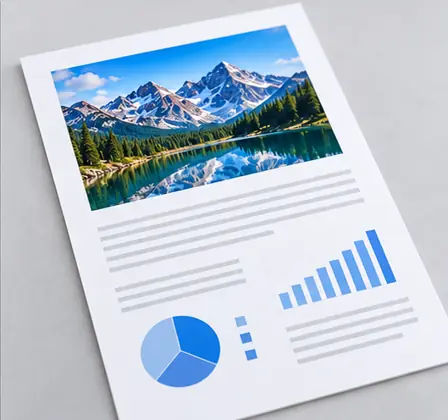
600 DPI
Dimensions: 2480 × 3508 px
Common for high-resolution scanning of documents, giving clear and detailed results.
DPI metadata helps plan print size and image workflows.
For screen use, pixel dimensions, display size, compression, and format matter more.
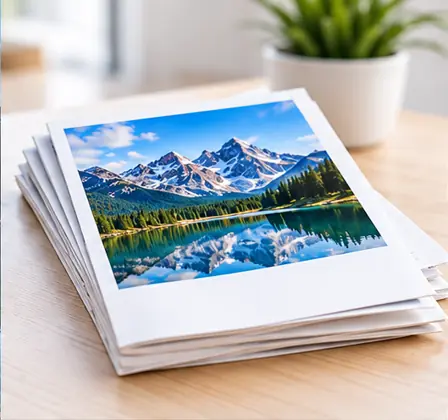
High DPI helps ensure sharp and clear printed photos, posters, brochures and business cards.
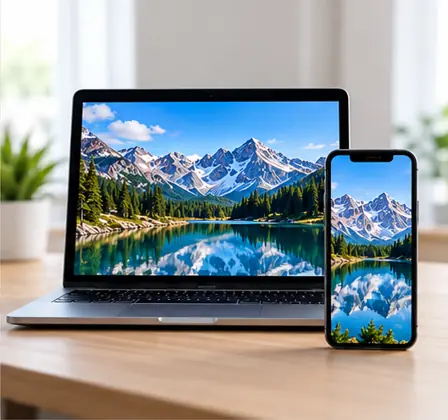
Web images usually do not need high DPI metadata. Pixel dimensions and file size are often more important for screen use.
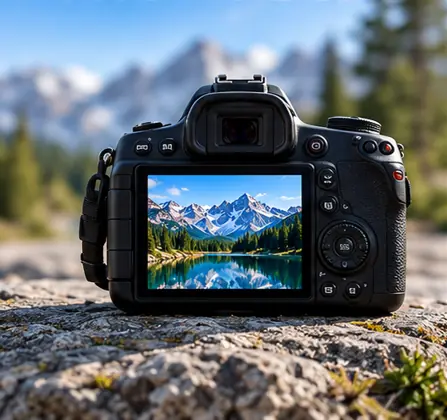
DPI metadata can help with print planning and professional photo workflows.
Consistent DPI settings help prepare assets for layouts, magazines, documents and print production.
View image file size in KB, MB
and more.
Check the resolution (width ×
height) of any image.
Instantly find the aspect ratio
of any image.
Calculate the print size from
pixels, DPI or PPI.
Explore all our free image tools to check, analyze, and optimize your images
for any purpose.
No. The image is processed locally in your browser. The file is not uploaded to our server. Your files never leave your device, ensuring privacy and security.
DPI refers to printer dots per inch. PPI refers to pixels per inch on digital displays or image density. They are related concepts but not identical.
Many web images, screenshots and exported images do not contain DPI metadata. This does not mean the image is broken. Pixel dimensions can still be read normally.
This image DPI checker reads embedded EXIF or JFIF resolution metadata in JPEG files, or PNG physical pixel information (pHYs) when available. It converts pixels per meter to DPI and never guesses missing values.
Yes. Print width = pixel width / DPI, and print height = pixel height / DPI. Enter your pixel dimensions and chosen print DPI in the calculator to see the size in inches.
Yes. The DPI checker is free to use, with no signup required. You can check image DPI and image dimensions privately in your browser.
Upload an image now and instantly view its DPI, dimensions, file size, and more.